This is an old revision of the document!
Table of Contents
Flight Recorder
Keep all important graphs on one view with export and replay functions including Google Earth export.
You can click on each of the graphs to show it maximized. Click on it again to revert it to normal size.
Airspeed
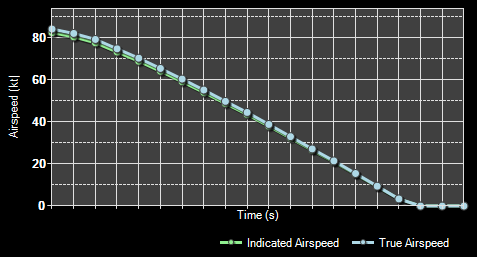
The first graph shows the current indicated and true airspeed.
Altitude
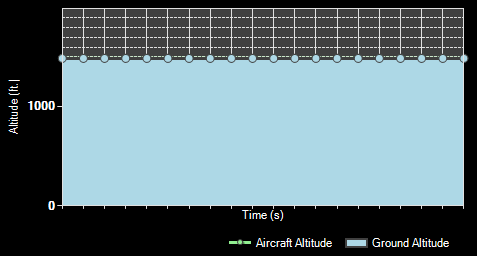
Here the aircraft altitude above mean sea level (MSL) as well as above ground is displayed.
Vertical Speed
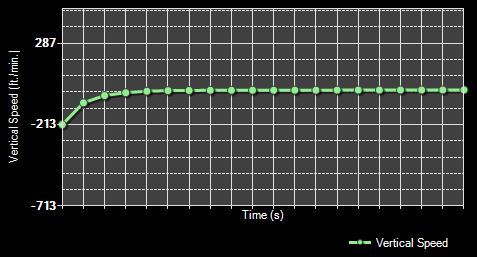
This graph shows the current vertical speed per minute.
Attitude
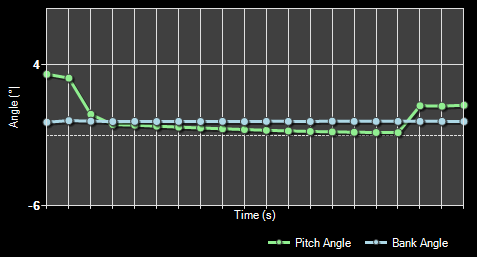
And finally here the aircraft attitude is shown as bank and pitch angle.
Recording and Playback

At the bottom left you will find the recording and playback controls.
You can start and stop the live recording of aircraft data at any time. While the recording is stop you can use the playback controls to go through the recorded data easily. If you want to delete all recorded data and start all over again use the button Clear All Flight Data.
Import and Export
Additionally you can import and export the flight data from respectively to a CSV file.
Print Charts

You can also print the displayed charts by clicking on the Print Charts button.
Export to Google Earth

Also an export to Google Earth is possible.
You can even choose if VORs, NDBs or waypoints should be exported as place marks additionally.
 Note: The range around the flight path where VORs, NDBs and waypoints are included can be adjusted in the Settings module.
After pressing the button Export to Google Earth you can directly start Google Earth with the exported data as long as Google Earth is installed on the current computer.
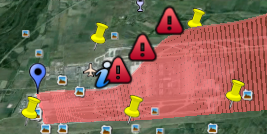
Here you can see how your flight data will look like then when it is shown in Google Earth.