This is an old revision of the document!
Table of Contents
Flight Plan
Plan your flights manually with several import and export options or even synchronize the flight plan with Project Magenta or Aerosoft Airbus products.
Current Flight Plan
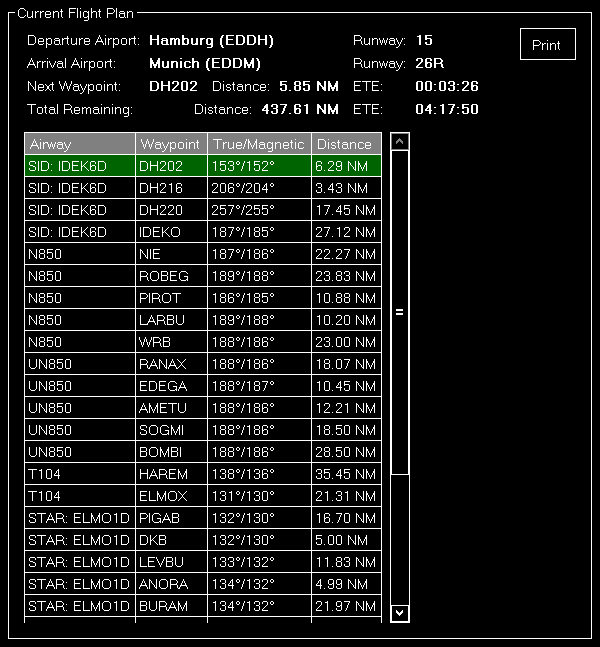
In this area the current loaded flight plan is displayed.
It starts with the departure and arrival airport as well as the next waypoint in the flight plan from the current aircraft position together with its distance and the total remaining distance.
Below that a list of all flight plan points is displayed together with the airway if one is used as well as the bearing and distance to the next waypoint in the list.
Right-click on any waypoint to either delete it, move it up or down, center the map on this point or completely clear the plan again.
 Note: Keep in mind that editing the flight plan is only possible when you are in the manual flight planning mode.
Manual Flight Planning
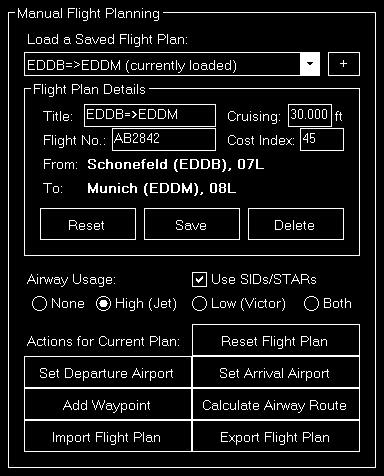
Select this mode to create and edit the flight plan manually.
Flight Plan Details

You can load, save or delete flight plans here.
To make it easier to find the right flight plan before loading it important details like departure and arrival airport together with the selected runway are displayed.
Additionally the title of the flight plan can be changed in this section.
Airway Usage

You can define here if and which kind of airways should be used for flight planning.
Additionally you can choose if also SIDs and STARs should be used.
Note: The airway options you choose here are also used for the visual flight planning with the flight plan mode on the Map module.
Actions for Current Plan
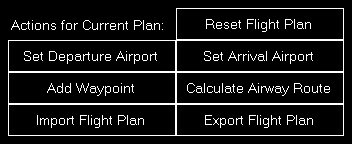
First you can set the departure and arrival airport here.
Additionally FS-FlightControl can calculate an airway route between the departure and arrival airport for you and you can remove all waypoints from the current flight plan again.
Finally you can also open the import and export dialog here.
Note: All other actions like adding a new waypoint to the flight plan can be done on the Map module in the flight plan mode.
Synchronize Flight Plan
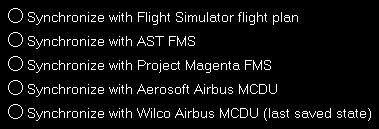
Beside creating a flight plan manually, you can also synchronize the flight plan with third party products.
Currently following third party products are supported:
- Project Magenta Airbus MCDU
- Aerosoft Airbus (both old “Extended” version and new one)
Import Flight Plan

This dialog provides you with various options to import flight plans from external applications.
Import from Waypoints Text
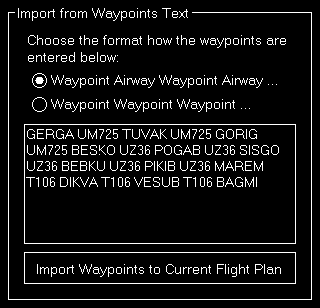
Use this section to easily import waypoints to your flight plan from websites like SkyVector.
First select if you want to import just a list of waypoints separated by a space (in this case FS-FlightControl will find out the airways itself) or the list includes the airways itself already alternating with the waypoints.
Then just copy & paste the waypoints list into the text field and click on the button Add Waypoints to Current Flight Plan.
Import from Prepar3D/FSX Flight Plan

Click on this button to import a flight plan from Prepar3D or FSX.
In the file dialog popping up just select the flight plan file and open it.
Import from Aerosoft Airbus Company Route

If you have installed an Aerosoft Airbus product you can also import Aerosoft Airbus company route as flight plan.
Just select the desired company route from the list and click on the button Import from Company Route.
Export Flight Plan
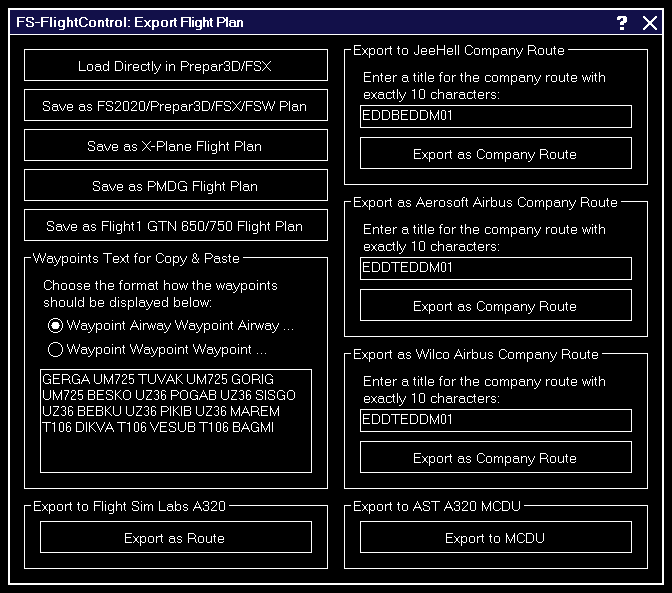
This dialog provides you with various options to export flight plans to external applications.
Waypoints Text for Copy & Paste

Use this section to easily export waypoints to other applications via copy & paste.
First select if you want to export just a list of waypoints separated by a space or the list should include also airways alternating with the waypoints.
Then just copy & paste the waypoints list from the text field into any other application you wish.
Export to Prepar3D/FSX Flight Plan

Click on this button to export a flight plan to Prepar3D or FSX.
In the file dialog popping up just select a file name and save it.
Export as Aerosoft Airbus Company Route
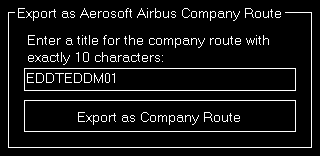
If you have installed an Aerosoft Airbus product you can also export a flight plan as Aerosoft Airbus company route.
Just enter a title for the company route with exactly 10 characters and click on the button Export as Company Route.